
7 Appendix B: How to Direct Wire Core
7.1 With an Ethernet Cable
To get started, you need the following:
- iPad with USB-C port
- A USB-C hub with Ethernet port (e.g., Anker PowerExpand 6-in-1)
- Any standard Ethernet cable
7.1.1 Initial Setup
- Power up control box.
- Connect USB-C adapter to iPad.
- Connect Ethernet cable to USB-C adapter.
- Connect the other end of the Ethernet cable to the control box.
- Open iPad.
- Open the Standard Bots app.
- Click add robot.
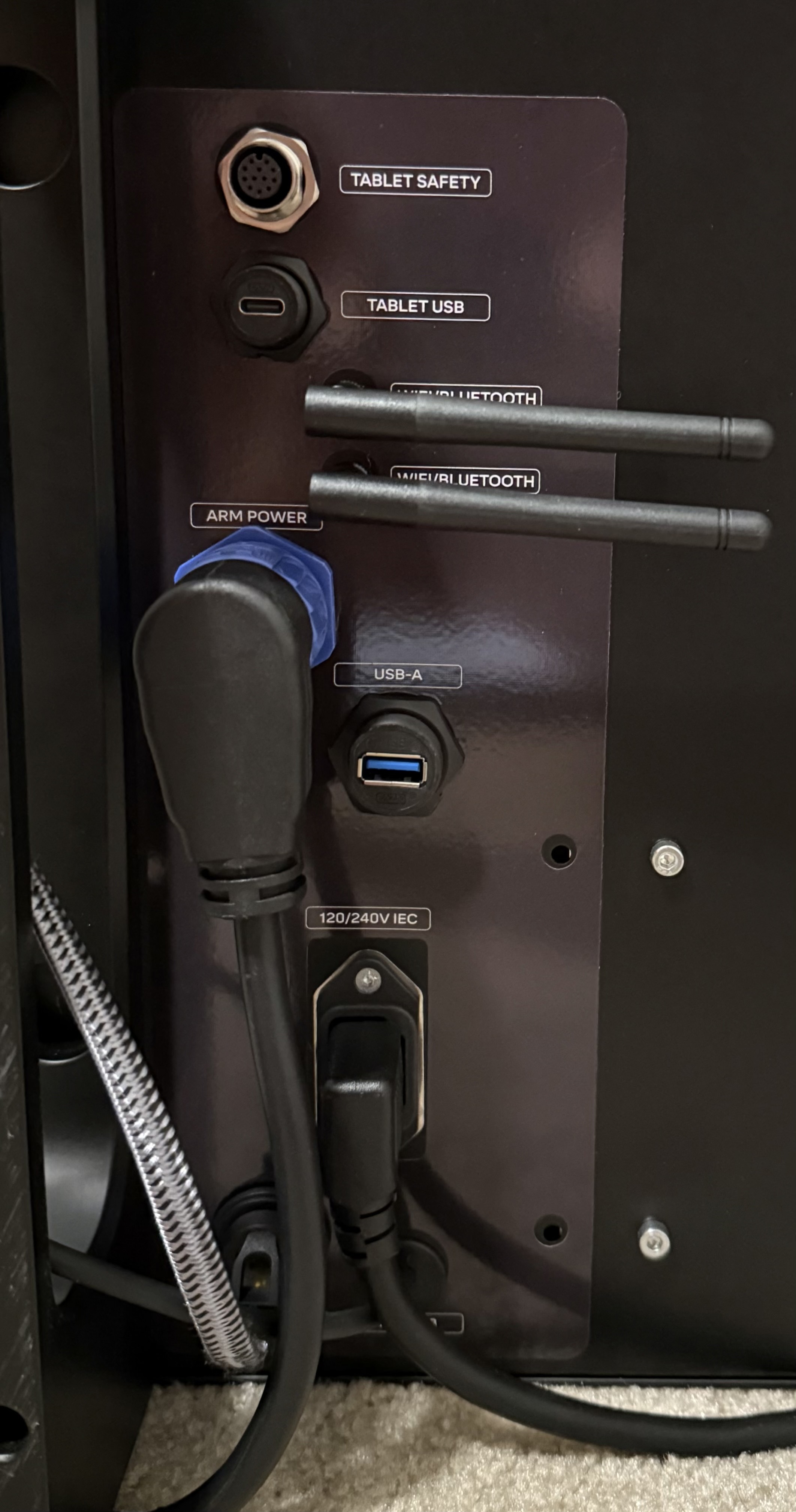
- Wait for the robot to show up. If it doesn’t, check under the control box to make sure the antennas are on the box.
- Click through until it asks about “network.”
- Go to the Ethernet tab.
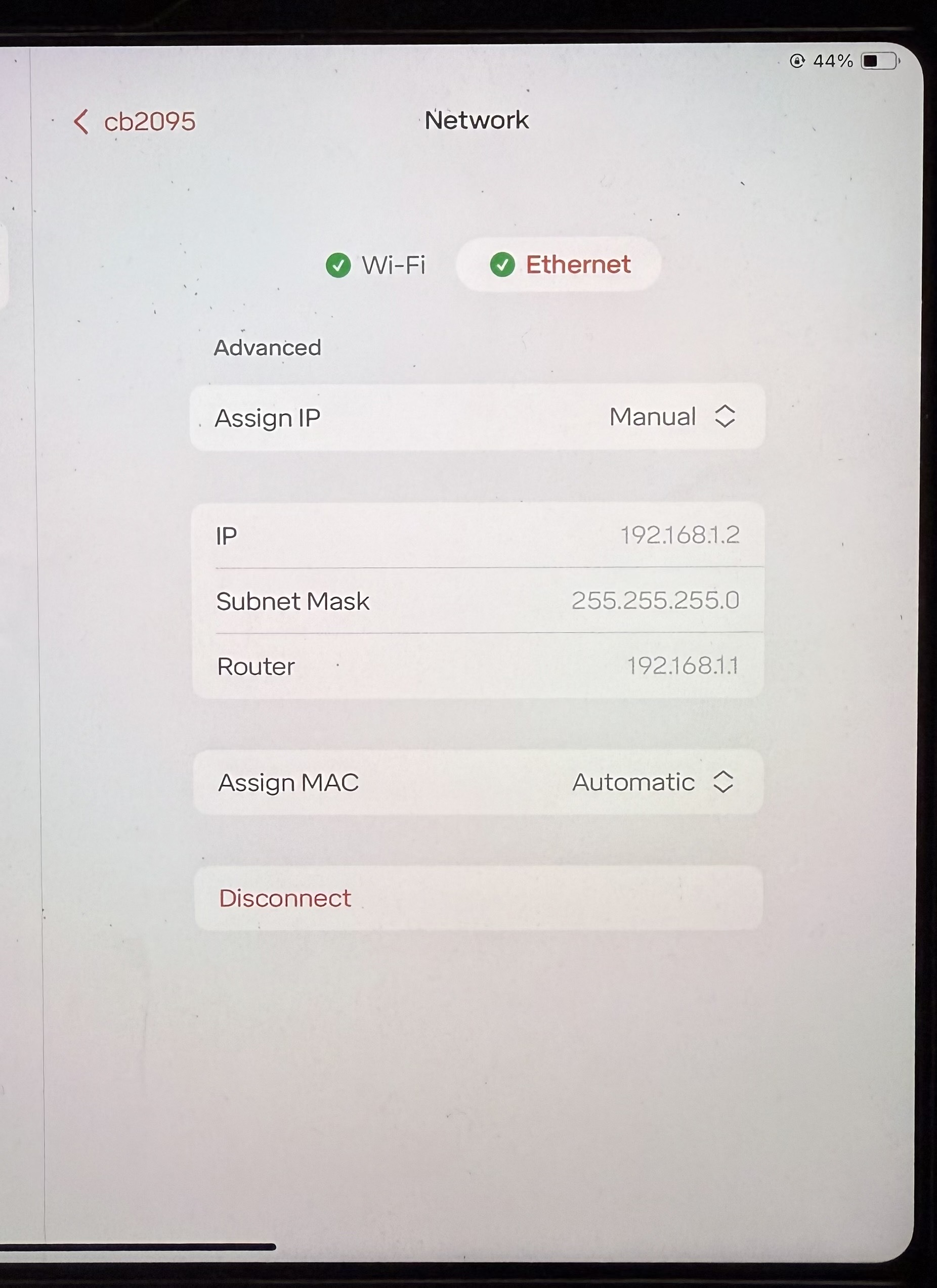
- Change to these settings:
- Manual/Auto: Manual
- IP: 192.168.110.5
- Subnet Mask: 255.255.255.0
- Router: 192.168.110.1
- Leave all other settings as-is.
- Click Connect on the bottom of the screen.
- Then on the iPad go to Settings.
- You should now see a setting for Ethernet.
- Go to Ethernet settings.
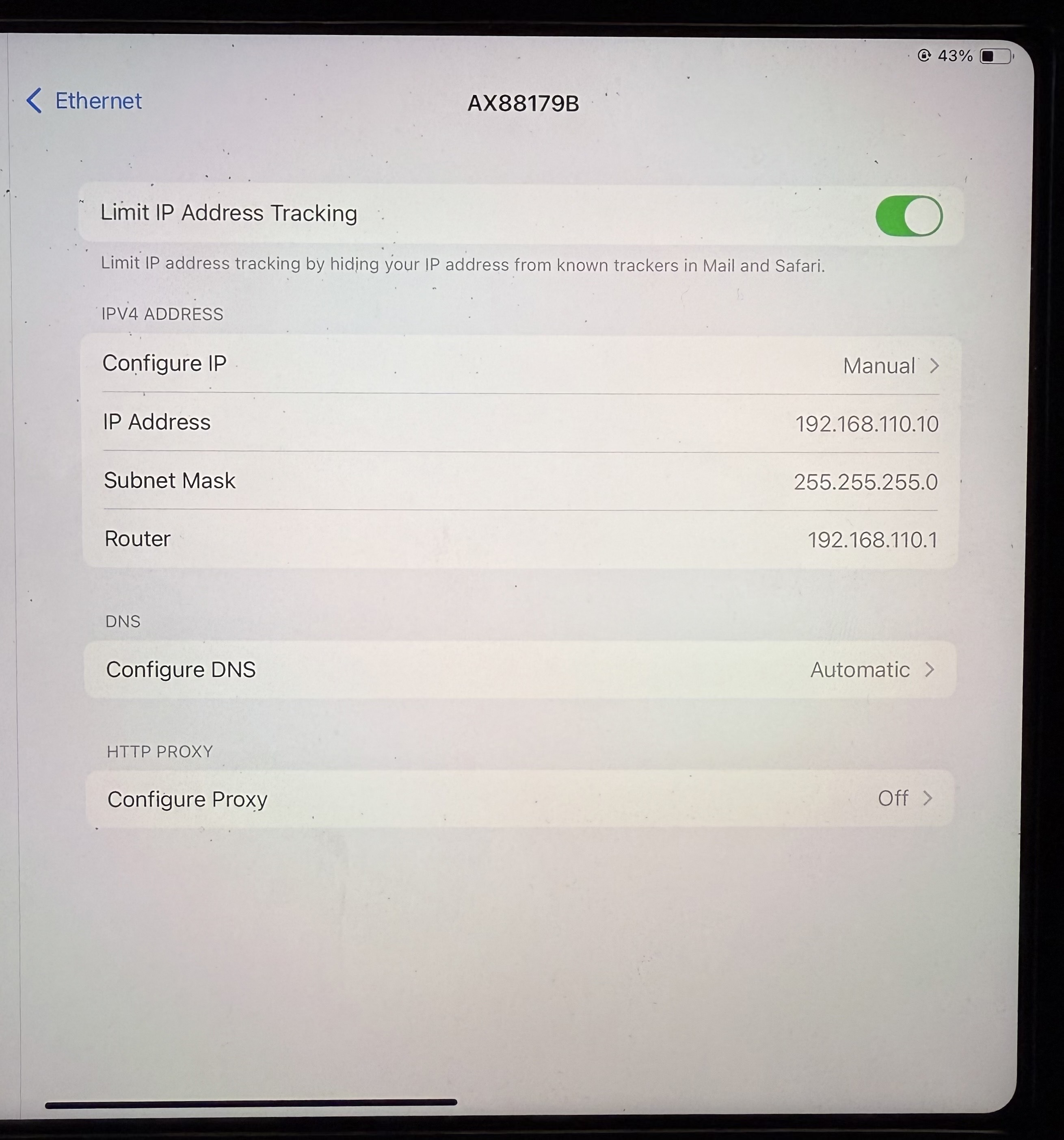
- Change to these settings:
- Manual/Auto: Manual
- IP: 192.168.110.10
- Subnet Mask: 255.255.255.0
- Router: 192.168.110.1
- Leave all other settings as-is.
- Don’t forget to save these changes.
- Open Safari or any web browser.
- Type in 192.168.110.5:3000.
- Hit enter.
- The UI should then come up.
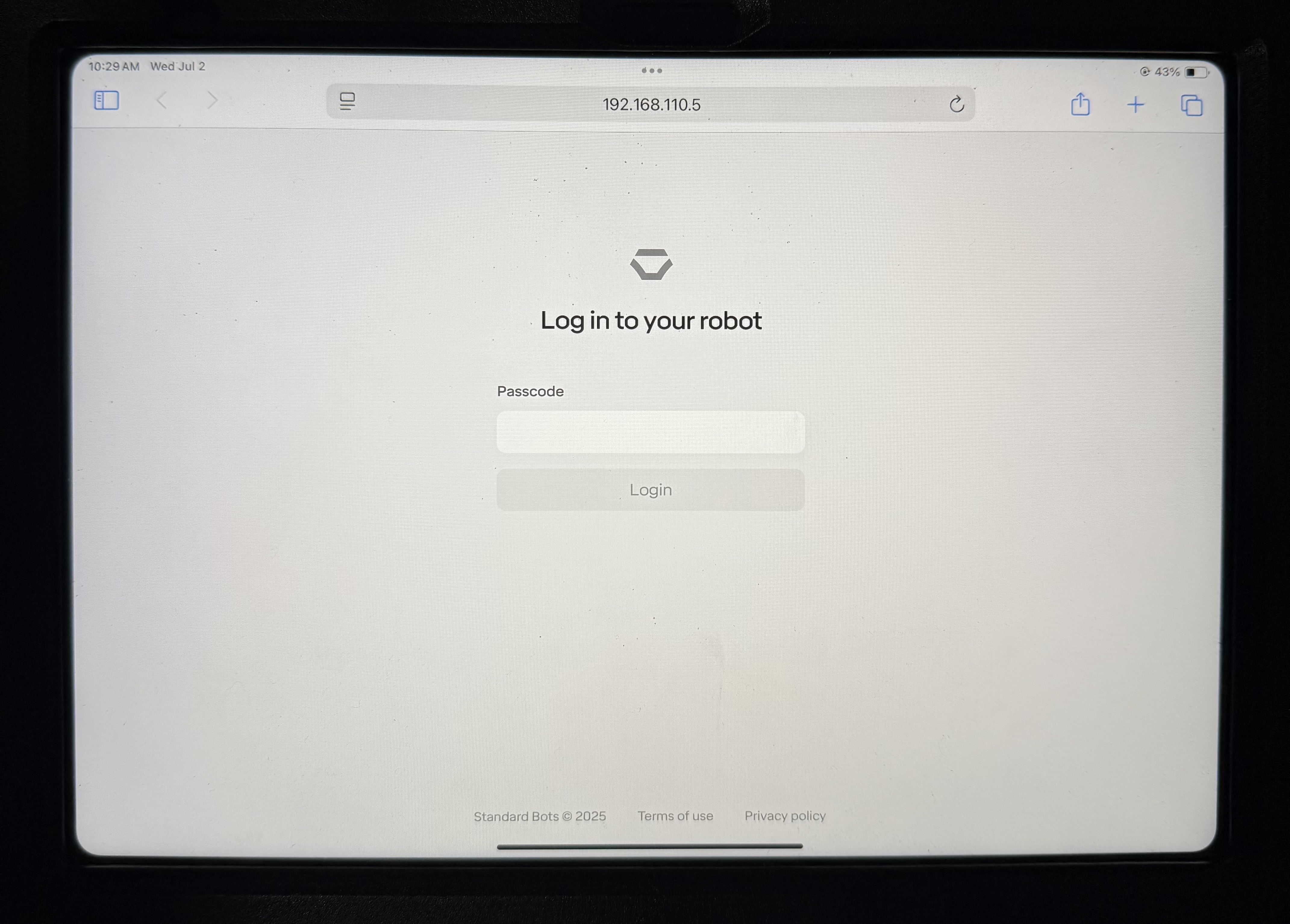
- Bookmark this page.
- If the iPad goes to sleep, you may have to unplug and replug in the USB-C adapter to get it to wake up. You should never have to reset any IPs on the robot or iPad as long as you use the same adapter.
7.1.2 Subsequent Use
- Turn on the control box.
- Wait for the LED on top of the box to turn green. If it does not turn green after 3 minutes, press it.
- Connect USB-C adapter to iPad.
- Connect the Ethernet cable to both the adapter and the control box.
- Go to your web browser and open the bookmark you previously saved.
- Use the robot!
7.2 Direct Connection (using a USB-C Cable)
7.2.1 Initial Setup
- Power up control box.
- Connect the iPad to the Tablet USB port on the bottom of the control box with a USB-C cable. At this time, the port is only one-directional. If you do not see the iPad start to charge, flip the end of the cable 180 degrees on the control box side.
- Go to the settings on the iPad and set the iPad IP to automatic (this should be the default on the iPad).
- Open iPad.
- Open the Standard Bots app.
- Click add robot.
- Wait for the robot to show up.
- Click through until it asks about “network.”
- Go to the option that says “Direct.” You will see that the status above says “Healthy” if the steps above were followed correctly.
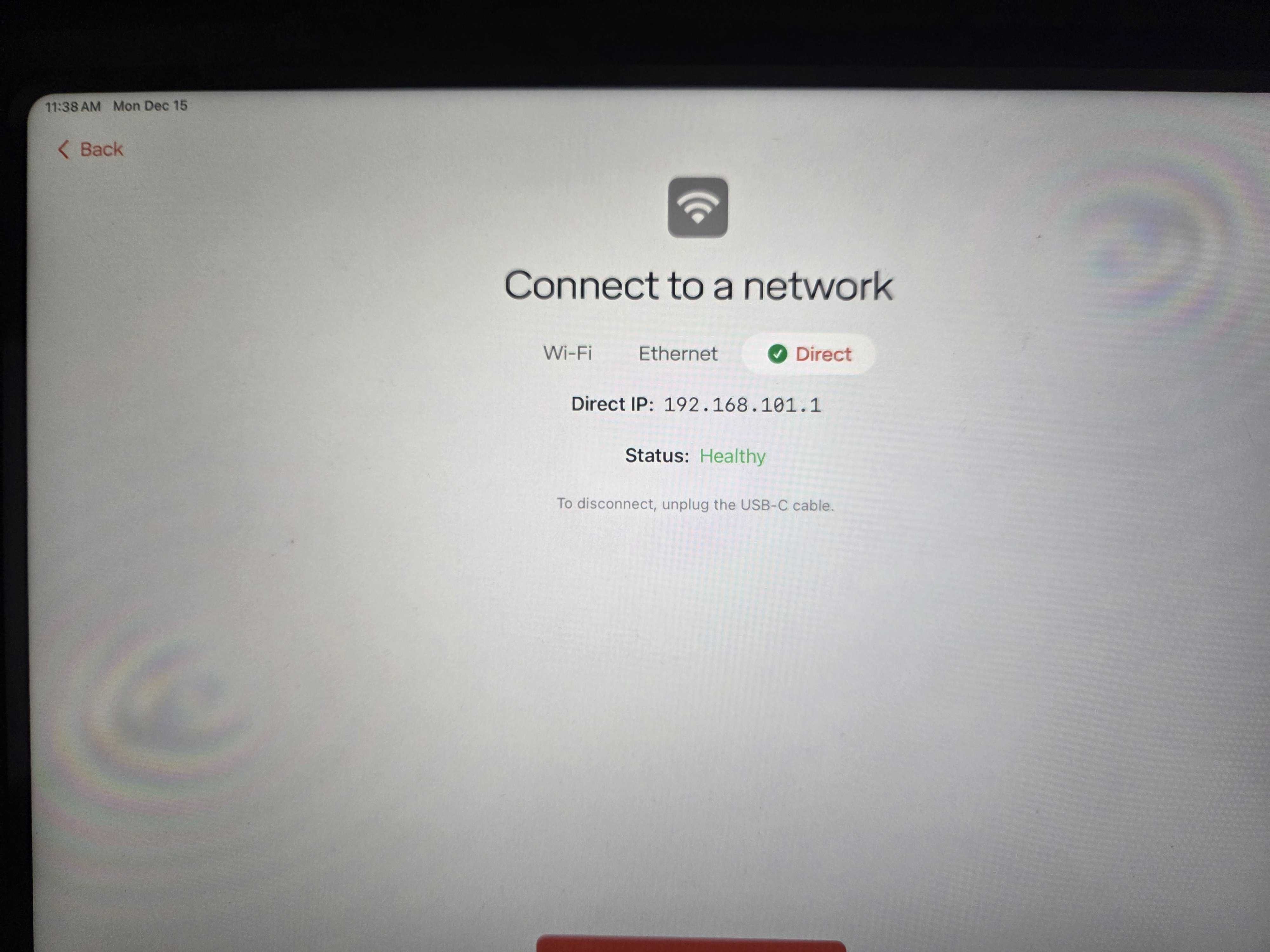
- Continue to the next page. You can now use your robot.
© 2026 Standard Bots Company. All rights
reserved.